AI Image Quiz for the Classroom: A Free Real-vs-AI Test for Schools
Can your students tell a real photo from an AI-generated one? Classroom turns our AI image test into a live, whole-class quiz — a teacher hosts on the projector, students join from their own devices with a room code, and everyone competes on a shared leaderboard. No accounts, no downloads, ready in under a minute. For a full lesson, switch to the AI Awareness Training (Basic) mode instead.
It's built for media literacy and digital citizenship lessons — a fast way to show students, in real time, how convincing AI-generated images have become, and what visual details still give them away.
Auf Deutsch: KI-Bilder-Quiz für die Schule → Classroom runs in German too — slides, questions and the class report.
How the Classroom AI Image Test Works
The Simple Quiz is a synced, multiplayer version of our AI image quiz built specifically for a teacher-and-students setup. It takes four steps to get an entire class playing.
Teacher creates a room
Open Classroom, keep "Simple Quiz" selected, tap "I'm a Teacher", enter a display name, and choose your round settings. A 6-character room code and a QR code appear instantly — no account, email, or setup required.
Students join in seconds
Project the room code (or QR code) on the screen. Students open the site on their own device — phone, Chromebook, iPad, laptop — type in the code and a nickname, and they're in the lobby. No app to install, no login.
Everyone sees the same images, live
The teacher hits Start. Every device shows the same round at the same time — one real photo, several AI-generated images. Students tap their guess; the teacher's screen shows who has answered.
Reveal, discuss, and track the leaderboard
After each round, the real image is revealed — and optionally which AI model generated the fakes. Scores update live on a shared leaderboard. Rounds can auto-advance on a timer, or the teacher can pause to discuss what gave the AI image away. At the end, the teacher can download a class report as a PDF.
Two Modes: Simple Quiz or AI Awareness Training (Basic)
Classroom has two modes, switched at the top of the page. Both use the same room code, run on students' own devices and need no accounts — they differ in how much of the lesson they carry.
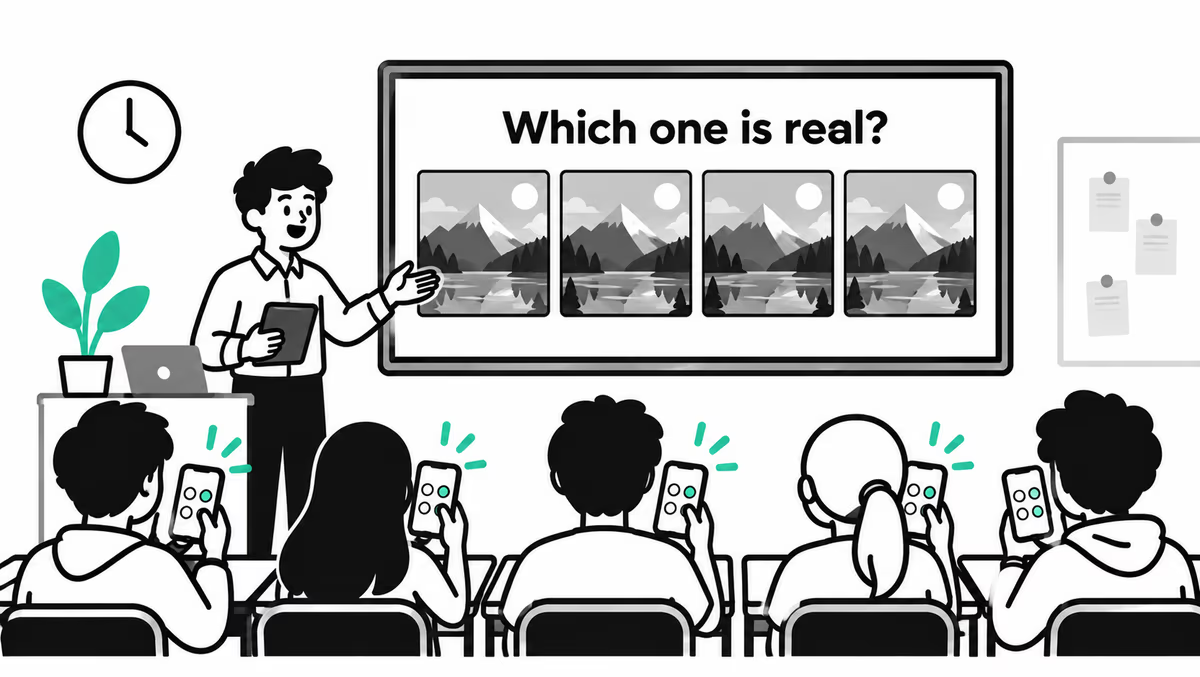
Simple Quiz →
A live real-vs-AI image game with a leaderboard. 1–20 rounds, about 5–20 minutes — a warm-up or discussion starter.
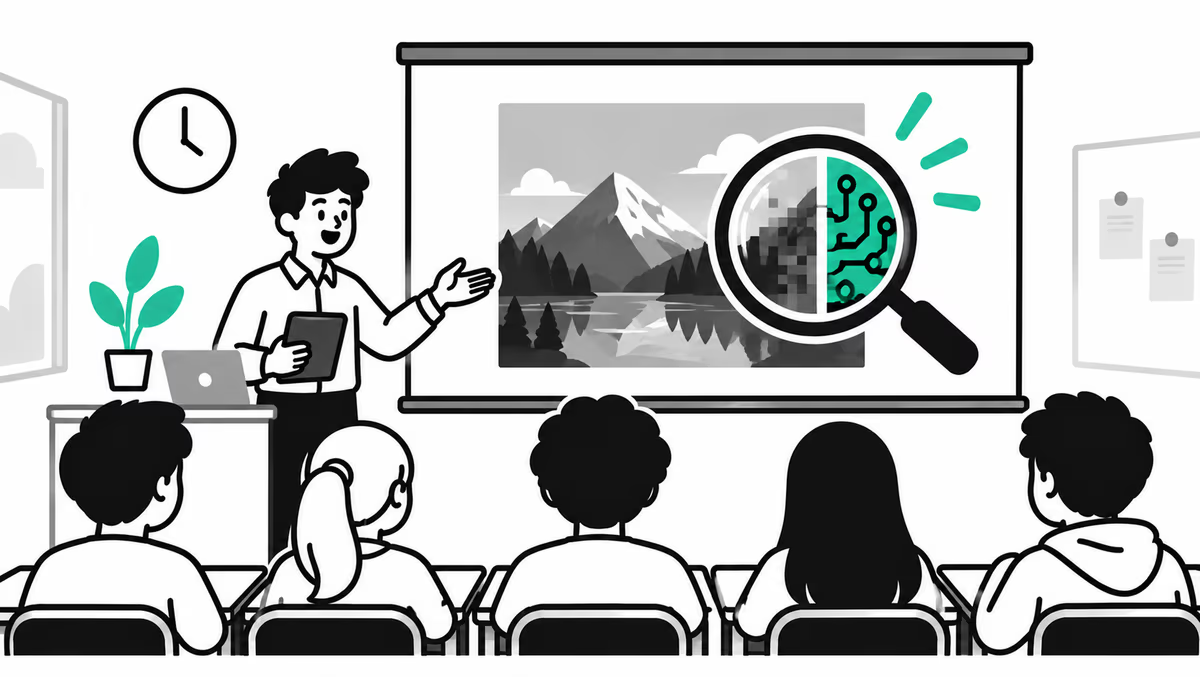
AI Awareness Training (Basic) →
Our free AI Awareness Training (Basic) as a lesson you present: chapter slides on the board, quiz questions on the students' phones, class results after every question.
| Simple Quiz | AI Awareness Training (Basic) | |
|---|---|---|
| Length | 5–20 minutes | About 50–70 minutes, chapters can be picked |
| On the projector | The image round and the leaderboard | Full-screen slides you move through with a clicker, keyboard or tablet |
| Students answer | Which image is the real photo | Picture questions on what to do with a suspicious post: pause, check, report, respond |
| For the teacher | Round, timer and model settings; class report (PDF) | Teacher notes, the whole training as a PDF, class report (PDF) |
Have a class website or blog? Embed this quiz on your class website — free, one line of code, no student accounts.
Teaching this more than once?
Both modes above stay free. Plus, coming soon, adds access to more ready-made courses, saved classes with one join code all year, homework mode and a before/after view of what your class still gets wrong. From €29 per school year — or as one licence for your whole school or institution.
Why Play an AI Image Quiz at School?
AI-generated images are now common in social feeds, search results, and news articles — and our 7,593-exposure report found that Human-labeled images were selected in 54.1% of recorded exposures. For students, the ability to critically evaluate an image before trusting or sharing it is quickly becoming a core digital literacy skill, alongside source-checking a website or recognizing a phishing email.
A live, competitive quiz format works well in a classroom because it makes the abstract concept of "AI-generated content" concrete and immediate: students see a photorealistic image, guess, and get instant feedback on whether it was real or synthetic — plus, optionally, which AI model produced it. That instant feedback loop is what actually improves detection accuracy, rather than just reading about the topic.
Curriculum fit: Teachers use the Simple Quiz as a warm-up activity for media literacy, digital citizenship, ICT, journalism, and art classes, and the AI Awareness Training as a stand-alone lesson on AI and misinformation.
Customizing the Quiz for Your Lesson
Before creating a room, the teacher chooses a few settings — these control the length and format of the game to fit a 10-minute warm-up or a full class period.
| Setting | What it does |
|---|---|
| Number of rounds | 1-20 rounds — pick a short 5-minute warm-up or a full-length activity. |
| Auto-advance | Rounds move on automatically after a set number of seconds, or turn it off to discuss each image as a class before continuing. |
| Show model after reveal | Displays which AI model (e.g. Midjourney, Flux, Imagen) generated the fake images — useful for a follow-up discussion on AI tools. |
| Only images with a known prompt | Restricts rounds to images with a documented source prompt, keeping subject matter predictable for a school setting. |
| Class report | After the last round, download a PDF with every student's right and wrong rounds and the class result per round. |
Discussion Questions & Lesson Ideas
Pause after a reveal (turn off auto-advance) and use these prompts to turn the quiz into a discussion, not just a game.
Device & Setup Requirements
Both classroom modes run entirely in the browser — there's nothing for school IT to approve or install. It works on Chromebooks, iPads, Android tablets, laptops, and phones, using Chrome, Safari, Edge, or Firefox. Students only need a room code and a nickname; teachers only need a projector or shared screen to display the code and, later, the live leaderboard.
Because the game state syncs in real time across every device, students can join mid-lobby, and the teacher's screen always shows who has joined and who has answered each round — useful for keeping a large class on pace.
Frequently Asked Questions
Is the AI image classroom quiz free? ▾
Yes. Classroom on WhichOneIsReal — both the Simple Quiz and the AI Awareness Training (Basic) — is completely free for teachers and students. There is no account, subscription, or app install required — the teacher opens a link, creates a room, and students join with a code.
Do students need to sign up or install an app? ▾
No. Students join by typing a 6-character room code (or scanning a QR code) into their browser and entering a nickname. It works on Chromebooks, iPads, laptops, and phones.
How many students can join one room? ▾
There is no hard cap — the lobby is designed for a typical class size (20-35 students), each on their own device.
What age group is the AI image quiz suitable for? ▾
It works well from upper elementary through university. Restrict rounds to images with a known prompt to keep subject matter predictable, and lower the round count for younger students.
Can I control the pace of the game as a teacher? ▾
Yes. Set the number of rounds (1-20), whether rounds auto-advance on a timer, and whether the AI model name is revealed after each round.
Does it work on Chromebooks and iPads? ▾
Yes. It runs entirely in the browser — Chrome, Safari, Edge, and Firefox are all supported, with no software installation or IT approval needed.
What subject areas does this fit into? ▾
Media literacy, digital citizenship, ICT/computer science, journalism, art, and general critical-thinking lessons — often used as a warm-up or discussion starter about AI and misinformation.
What is the difference between the Simple Quiz and the AI Awareness Training (Basic)? ▾
The Simple Quiz is a live game: everyone sees the same images and picks the real photo, with a leaderboard — a 5 to 20 minute warm-up. The AI Awareness Training (Basic) is a full lesson of roughly 50 to 70 minutes: the teacher presents the course chapters as slides, and students answer quiz questions about what to do with a suspicious image on their phones.
Can I download the results of my class? ▾
Yes. At the end of a session the teacher can download a class report as a PDF: each student's answers, how many they got right, and how the class did on every round or question. It is generated in the teacher's browser; answers are not stored on our servers.
Bring It Into Your Classroom
Set up takes under a minute — create a room, project the code, and your students are playing.
Related AI Detection Guides & Quizzes
Good prep material before running a classroom session with your students.