Best AI Image Upscaler in 2026
Disclosure: some links on this page are affiliate links — if you sign up through one, we may earn a commission at no extra cost to you. This never affects our rankings or test results.
AI upscalers can turn a blurry 500px thumbnail into a sharp, print-ready file — but the gap between a good result and an oversharpened mess is wider than most tool comparisons let on. We tested the most popular free and paid options on real photos, AI-generated images, old scans, and illustrations to find out which ones actually deliver.
This guide covers how AI upscaling works technically, which artifacts to watch for, a full comparison table, deep-dive profiles for each tool, a print resolution guide, and a step-by-step workflow for getting the best results.
How AI Upscaling Actually Works
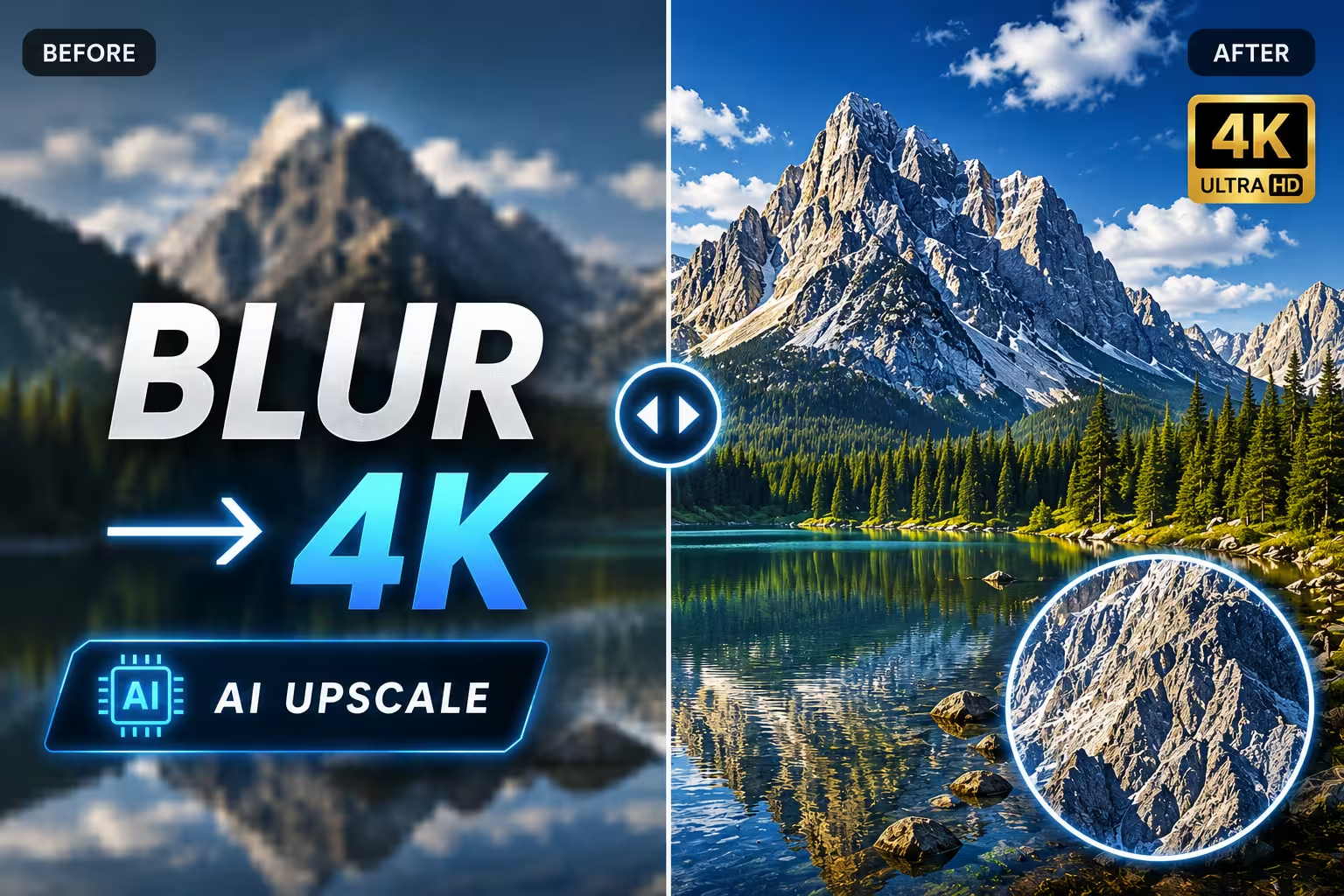
Traditional upscaling algorithms — bicubic, Lanczos, nearest-neighbour — work by interpolating between existing pixels. They estimate what value sits between two known values by averaging or weighting nearby data. The result is mathematically correct but visually soft: every edge blurs, every texture smooths out, and fine detail is irretrievably lost at high scale factors.
AI upscalers work from the opposite direction. Instead of estimating missing values from neighbours, they use a neural network trained on millions of image pairs — a high-resolution original alongside a synthetically degraded low-resolution version — to learn what high-resolution images actually look like. When the network encounters a blurry edge, it doesn't average; it predicts the sharp version based on patterns from every similar edge it has seen in training.
The main model architectures
ESRGAN / Real-ESRGAN
Enhanced Super-Resolution GAN. A generator network produces the upscaled image while a discriminator network judges whether it looks realistic. This adversarial training pushes the generator to produce texture that looks genuinely photographic rather than mathematically smooth. Real-ESRGAN (2021) added synthetic degradation pipelines to handle real-world image corruption — JPEG noise, blur, compression — not just clean downscales. It is the foundation of Upscayl and many other free tools.
EDSR / SwinIR
Enhanced Deep Super Resolution and its transformer-based successor. These are non-GAN models that optimise pixel accuracy rather than perceptual realism. They tend to produce slightly less sharp output than ESRGAN but with fewer hallucination artifacts — better for cases where faithfulness to the original matters more than visual pop. Several Topaz models are transformer-based.
waifu2x (CNN-based)
A convolutional neural network trained specifically on anime-style artwork. Its training data consists of hand-drawn illustrations rather than photographs, which makes it excellent at preserving clean outlines and flat colour fills while eliminating JPEG compression noise. On photorealistic images it loses to ESRGAN-based models, but for 2D art it remains the standard.
Diffusion-based upscaling (Stable Diffusion img2img)
A fundamentally different approach where the upscaler uses a diffusion model (like SD 1.5 or SDXL) to re-imagine the image at higher resolution. Rather than predicting detail from the source, it generates new content guided by the source. The result can be striking — but the output may diverge meaningfully from the original. Used by Magnific AI and similar tools. Best for artistic upscaling where creative enhancement is acceptable; inappropriate when the output must closely match the input.
The key tradeoff: GAN-based models (Real-ESRGAN) produce the sharpest, most textured results but can hallucinate detail that was never in the original. Transformer-based models (SwinIR, EDSR) are more faithful but less visually aggressive. Diffusion-based upscaling is most creative but least faithful. Knowing which type a tool uses tells you what to expect before you upload anything.
Common Artifacts & Quality Issues
Not all upscaling results are good. Here are the most common failure modes — what causes them and which tools handle them best.
Oversharpening halos
A bright or dark fringe around edges, especially where a sharp object meets a smooth background. Caused by aggressive sharpening kernels in the model. Most visible in portraits and product shots. Worst offenders: older Real-ESRGAN versions at 4x. Best handled by: Topaz Gigapixel's "Standard" model, Let's Enhance.
Plastic skin
Faces come out with unnaturally smooth, waxy skin while surrounding areas (hair, clothing) look sharp. Happens when a face recovery model over-smooths pores and micro-texture. Worst offenders: face-restoration tools at high strength settings. Best handled by: Topaz's "Low Confidence" face mode, Upscayl's Remacri model.
Texture hallucination
The model invents textures that weren't in the original — grass that turns into individual blades, fabric that gets a weave pattern it never had. This often looks good at a glance but represents detail the model generated from its training data rather than recovered from the image. Most common with: GAN-based models at 4x+. Less of an issue with: transformer-based tools, 2x upscaling.
Colour shifts
Subtle changes in hue, especially in skin tones and skies. Some models introduce a slight warmth or desaturation that wasn't in the source. Usually minor but visible in a direct comparison. Most reliable colour accuracy: Topaz Gigapixel, SwinIR-based tools.
Grid pattern artifacts (tiling)
A faint repeating grid pattern visible in smooth gradients (sky, skin). Caused by the model processing images in overlapping tiles at inference time without seamless blending. More common in older or lower-quality implementations. Most current tools have fixed this.
Text degradation
Text, logos, and UI elements in the original image often come out blurry or distorted after AI upscaling, even when the rest of the image looks sharp. AI models trained on photography have no concept of typography — they treat letter forms as texture and hallucinate wrong characters. Rule: for screenshots, UI design, or text-heavy images, AI upscaling typically makes things worse. Use traditional vector-based solutions instead.
Quick Comparison
| Tool | Max Scale | Free Plan | Watermark | Model type | Type |
|---|---|---|---|---|---|
 Upscayl Upscayl | 16x | Fully free | None | Real-ESRGAN | Desktop |
 Bigjpg Bigjpg | 4x | 20 images/month | On free tier | CNN | Online |
 waifu2x waifu2x | 4x | Fully free | None | CNN (anime) | Online |
 Let's Enhance Let's Enhance | 8x | 10 credits on signup | Yes | Proprietary | Online |
 Topaz Gigapixel Topaz Gigapixel | 6x | Trial only | None | Transformer | Desktop · $29/mo |
 Topaz Photo AI Topaz Photo AI | 6x | Trial only | None | Transformer | Desktop · $39/mo |
 Magnific AI Magnific AI | 8x+ | Trial only | None | Diffusion | Online · $39/mo |
 Adobe Firefly Adobe Firefly | 4x | Limited daily generations | None | Proprietary | Online |
Put yourself to the test
Can you spot AI-generated images?
You now know how upscaling works under the hood — but can you tell a real photo from an AI fake at a glance? Most people can't.
Best Free AI Image Upscalers
1. Upscayl — Best Overall Free
Upscayl is open-source, runs entirely on your local GPU, and consistently outperforms tools that cost $50–80. It ships with multiple models — each tuned for different content types — and lets you batch-process entire folders with one click. Because processing happens on your machine, there are no upload limits, no file size caps, and no privacy concerns about uploading personal photos to a third-party server.
Available models and when to use them
Tips for best results
- — Start with 2x, inspect the result, then chain to 4x if needed — stacking 2x twice often produces less artifacts than a single 4x pass
- — For portraits: use Remacri over Real-ESRGAN to avoid plastic skin
- — Pre-denoise with a dedicated tool before upscaling if the source image has heavy noise — upscaling first amplifies noise
- — Export as PNG rather than JPEG to avoid re-compression artifacts on the output
2. Bigjpg — Best for High Scale Factors Online
Bigjpg is one of the oldest dedicated online upscalers. Its free plan currently includes 20 images per month at up to 4x. It runs a CNN-based model with two distinct modes: one trained on photographs and one specifically tuned for anime and illustration. The photo mode produces decent results at 2x and 4x but starts to hallucinate unrealistic texture at 8x+. The anime mode is competitive with waifu2x for clean illustrations.
The free tier caps input files at 5MB. Paid plans include $12 for six months and $22 for twelve months, with higher scale and file-size limits.
3. waifu2x — Best for Illustrations & Anime
Built in 2014 specifically for anime artwork, waifu2x remains the standard for any image with clean linework and flat colour fills. Its CNN was trained on a curated dataset of hand-drawn illustrations rather than photographs — the fundamental difference that makes it excellent for its intended use case.
Beyond upscaling, waifu2x includes a noise reduction mode that operates independently — you can denoise without upscaling. This is particularly useful for cleaning up JPEG compression artifacts on illustrations before exporting or printing, even at the original size. The noise levels range from 0 (none) to 3 (aggressive) — level 1 or 2 covers most cases without over-smoothing.
For photorealistic images, Upscayl or Topaz will produce significantly better results. waifu2x's training data does not include the kind of detail it needs to reconstruct realistic skin, fabric, or grass convincingly.
4. Let's Enhance — Best Free Online Quality for Photos
Let's Enhance produces some of the cleanest results of any online upscaler for portrait and lifestyle photography. Its proprietary model appears to use a transformer-based architecture with specific training on skin tones and facial features. At 4x, faces look sharp without the plastic-skin effect that plagues many GAN-based tools.
The free plan gives 10 credits upon signup rather than a recurring monthly allowance. Paid plans start around $9/month for 100 credits, with a Smart Enhance option that combines upscaling with automatic exposure and colour correction. The Smart Enhance mode can be hit or miss on images that are already well-exposed, but on challenging inputs (underexposed, noisy) it often delivers impressive results.
Best Paid AI Image Upscalers
Topaz Gigapixel AI — Industry Benchmark
Gigapixel AI has been the professional standard for print upscaling since 2017. The 2025/26 version uses transformer-based models (Gigapixel Standard and Gigapixel High Fidelity) that produce remarkably faithful enlargements even on challenging inputs like old scanned prints or compressed social media images.
Available models and their use cases
Gigapixel integrates as a plugin in Lightroom Classic and Photoshop, which is significant for professional workflows — you can right-click any image in your Lightroom library and send it directly to Gigapixel without leaving the application. Batch processing is available and handles hundreds of files overnight with no manual intervention.
Topaz Photo AI — Upscaling + Denoise + Sharpen
Photo AI merges Gigapixel's upscaling with Topaz's DeNoise AI and Sharpen AI into one application with an auto-pilot mode that analyses each image and decides which corrections to apply automatically. For a photographer dealing with a mixed batch — some images sharp, some noisy, some blurry — Photo AI can work through the entire folder without per-image manual input.
The Autopilot mode is genuinely useful for bulk processing but occasionally misidentifies what an image needs — applying sharpening to a deliberately soft portrait, for example. For critical single-image work, the manual controls give you complete precision. The $39/month plan combines upscaling, denoising and sharpening in one subscription.
Magnific AI — Best for Creative/AI Image Upscaling
Magnific AI is a diffusion-based upscaler — it uses a Stable Diffusion-based model to upscale images while re-imagining detail at higher resolution. The output is often strikingly detailed, especially for AI-generated portraits and fantasy artwork. But it is not a faithful upscaler — the model genuinely hallucinate detail according to a prompt and creativity slider.
A creativity/adherence slider lets you control how much the model diverges from the input. At minimum creativity, it resembles a conventional upscaler. At higher settings, it adds significant detail that may change the character of the image — useful for creative applications, problematic for documentary photography. Magnific is particularly popular among AI art creators for adding cinematic detail to Midjourney or FLUX outputs.

Need more than just upscaling?
OpenArt gives you upscaling plus image generation with Flux, DALL-E, Stable Diffusion and more — one login, one platform, one credit system.
Print Resolution Guide
The most common reason to upscale is print — a 1000px image looks fine on screen but falls apart at A4 size. Here is what you actually need, and how much upscaling gets you there.
| Print size | 150 DPI (standard) | 300 DPI (high quality) |
|---|---|---|
| A5 (15 × 21 cm) | 886 × 1240 px | 1772 × 2480 px |
| A4 (21 × 30 cm) | 1240 × 1754 px | 2480 × 3508 px |
| A3 (30 × 42 cm) | 1754 × 2480 px | 3508 × 4961 px |
| 30 × 40 cm poster | 1772 × 2362 px | 3543 × 4724 px |
| 60 × 90 cm poster | 3543 × 5315 px | 7087 × 10630 px |
Rule of thumb: A smartphone photo (12MP ≈ 4000×3000px) prints fine at A3 at 300 DPI without upscaling. The problem is always with compressed downloads, screenshots, or images sourced from the web at 72–96 DPI.
For large-format prints viewed from a distance (posters, banners, exhibition prints), 100–150 DPI is sufficient. The viewing distance compensates for the lower pixel density — a 60cm-wide poster is typically viewed from at least 1 metre away.
Practical example: A 1000×667px image (typical small social media photo) needs to reach ~2480×1656px for A4 at 300 DPI. That is a 2.5x upscale — well within any tool's range and achievable with Upscayl for free.
Step-by-Step Workflow for Best Results
The order of operations matters. Upscaling a noisy or blurry image amplifies those problems. Here is the recommended sequence:
Start with the best source available
Use the highest-resolution version of the image you can find. Even a moderately compressed 2000px image will upscale better than a clean 500px one. Check if the original file exists before reaching for an upscaler.
Denoise first if necessary
If the image has visible noise (ISO grain, JPEG compression artifacts), reduce it before upscaling. Upscaling amplifies noise — a slightly noisy input becomes visibly grainy at 4x. In Topaz Photo AI or DeNoise AI, apply noise reduction first. In Upscayl, the model handles mild noise reasonably but dedicated denoising is better for heavily compressed inputs.
Choose your scale carefully
Upscale to the minimum size you need, not the maximum you can. Each additional upscale step accumulates hallucination. If you need 2500px and your source is 1000px, do a 3x upscale — not 4x followed by a crop. Topaz Gigapixel lets you enter a target pixel dimension directly.
Pick the right model for your content
Photo models on illustrations produce photographic texture that looks wrong. Anime models on photographs produce flat, slightly cartoon-like output. Match the model to the content type — all major tools offer this distinction.
Inspect at 100% zoom before exporting
Always check the output at 1:1 pixel view before exporting. Look for halos, plastic skin, hallucinated texture, and text degradation. If something looks wrong, try a different model or scale down the output slightly.
Export as PNG (or TIFF for print)
Save the upscaled output as PNG or TIFF, not JPEG. JPEG compression introduces new artifacts on top of your upscaled result. Only convert to JPEG as the final step, and at maximum quality (95+).
Which Tool for Which Use Case?
Upscaling a photo for large-format print
Use Topaz Gigapixel AI. Its transformer-based models and face recovery put it ahead of every free alternative for print work.
Free, unlimited upscaling — no restrictions
Use Upscayl with the Remacri model. Runs locally, zero watermarks, handles batches, competitive quality. Requires a modern GPU for reasonable speed.
Anime, illustrations, or digital art
Use waifu2x or Bigjpg's anime mode. Both handle flat fills and sharp linework far better than photo-trained models.
Quick online upscale — no install, no account
Use Bigjpg. The free plan provides 20 images/month at up to 4x with a 5MB input limit.
Restoring old or low-resolution face photos
Use Topaz Gigapixel with Face Recovery on Low or Normal strength. For a free alternative, Let's Enhance handles faces well within its 10 signup credits.
Upscaling an AI-generated image (Midjourney, FLUX, DALL-E)
Use Upscayl with Remacri (preserves style without over-sharpening) or Magnific AI if you want to add creative detail beyond what the original model produced.
A3/A4 poster from a 1000px web image
2x upscale with Upscayl or Let's Enhance gets most 1000px images to printable A4 quality. Check output at 100% zoom before sending to print.
When NOT to use AI upscaling
Screenshots, UI designs, text-heavy images, medical images, forensic evidence. AI models hallucinate pixels — upscaling a screenshot usually makes text blurrier and distorts UI elements. Use vector software or integer-pixel scaling instead.
Need an image to upscale first?
See our tested comparison of the best free AI image generators — Flux, DALL-E, Firefly and more.
FAQ
What is an AI image upscaler? ▾
What is the best free AI image upscaler? ▾
Does AI upscaling add fake detail? ▾
What causes the 'plastic skin' look in upscaled portraits? ▾
What is the difference between 2x and 4x upscaling? ▾
Can I upscale an AI-generated image? ▾
What resolution do I need for print? ▾
What is the best AI upscaler for anime and illustrations? ▾
Related

Best Free AI Image Generators 2026
Flux, DALL-E, Firefly — tested and compared
Midjourney vs DALL-E
Which image AI wins in 2026?

How to Detect AI-Generated Images
Visual guide with annotated examples
AI Image Quiz
Can you spot AI-generated photos? Take the test.